Install and sign in to Message Phone first, then install or update Message Watch using Wear Installer 2 on your Android phone. Work through these screens in order, with your phone and watch beside you.
Screenshots are cropped from a real setup. Their numbers are examples, not values to copy. Menus may look slightly different on your watch or app version.
On Message downloads, use the Message Watch / Download for watch card. Save the latest Watch APK to your phone’s Downloads folder. Do not choose Message Phone: that is a different APK.
Connect the phone and watch to the same Wi-Fi network.
This downloads the watch installer file onto your phone. You will send it to the watch in step 6; do not try to install it as a phone app.
02
Prepare your watch
On your watch
On a Samsung Galaxy Watch, open Settings → About watch → Software information. Tap Software version five times to enable Developer options, if needed.
Open Settings → Developer options.
Enable ADB debugging and Wireless debugging. Accept the relevant prompts, including allowing debugging on your Wi-Fi network.
Open the main Wireless debugging screen. You will use its current IP address and connection port next.
Before pairing: temporarily increase the watch’s screen timeout in its display settings if needed. Keeping the screen awake helps avoid interruptions that require a fresh pairing code and port.
03
Enter the watch’s connection details
On your phone
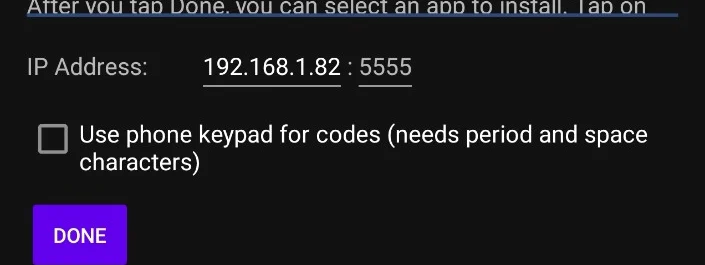
Open Wear Installer 2. At the bottom of its setup screen, enter the watch’s IP address, as shown on the watch’s main Wireless debugging screen. Do not use the phone’s IP address.
Where there is a separate port field, enter that screen’s connection / debugging port. Both fields must match the watch’s current details. Do not assume 5555 is correct.
Tap Done to reach the screen listing installed phone apps.
Look at the bottom of setup for the IP and port fields. The 5555 shown in this older screenshot is not a recommendation; replace it with your watch’s current connection port. Tap the image to enlarge.04
Open “Pair with watch”
On your phone
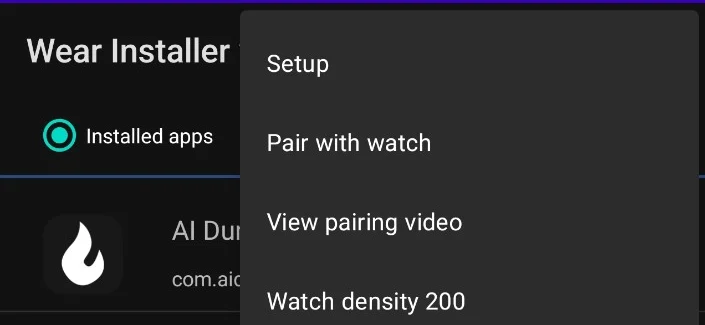
On the app-list screen, tap the three dots at the top right.
Choose Pair with watch.
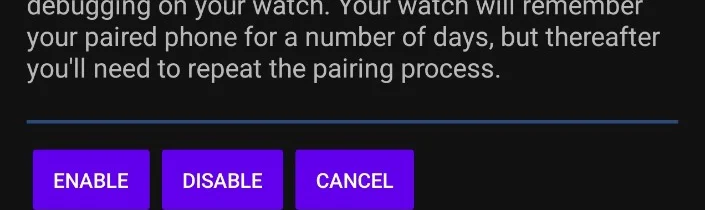
On the next information screen, tap Enable at the bottom.
Choose Pair with watch, just below Setup. Tap the image to enlarge.Tap Enable, the leftmost button. Tap the image to enlarge.05
Pair your phone and watch
On your watch
Open Wireless debugging → Pair new device.
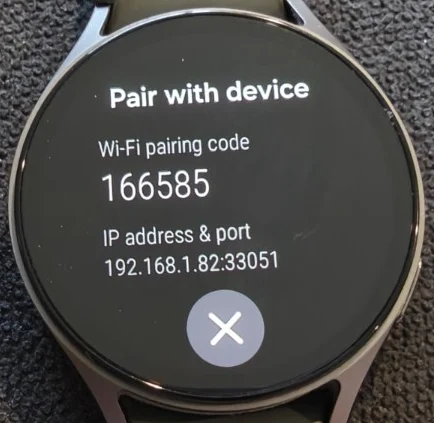
Leave this screen open and KEEP THE WATCH SCREEN AWAKE. It shows a Wi-Fi pairing code and an IP address followed by a pairing port.
The code is the large number under Wi-Fi pairing code. The pairing port is only the number after the colon under IP address & port. Use your own current values. Tap the image to enlarge.
On your phone
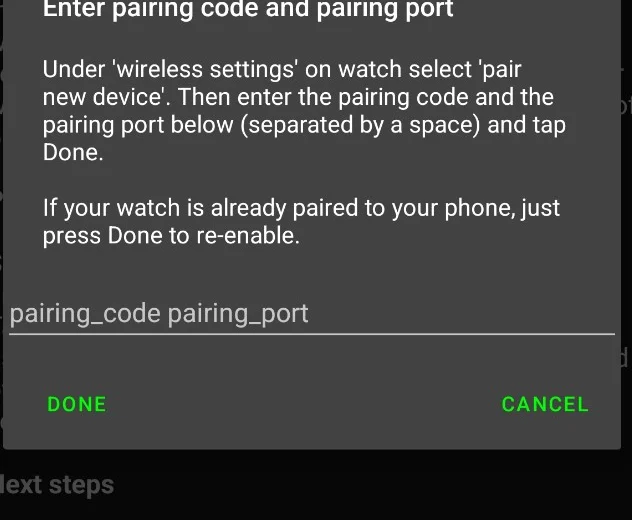
In Wear Installer 2’s Enter pairing code and pairing port box, enter the code, ONE SPACE, then ONLY the pairing port number.
Tap Done and wait for pairing to succeed, keeping the watch awake.
FICTIONAL EXAMPLE — DO NOT COPY THESE VALUES123456 33051
123456 = pairing code · one space · 33051 = pairing port
No full IP address. No colon. No connection port in this box.
Use the single text field for code SPACE pairing-port, then tap Done. Tap the image to enlarge.
Now check the connection again. After pairing, return to the watch’s main Wireless debugging screen. Check its current IP address and connection / debugging port. In Wear Installer 2, open ⋮ → Setup if needed, update the IP and port fields to match, then tap Done. Do not leave the pairing port in the connection field.
06
Install the Message Watch APK
On your phone
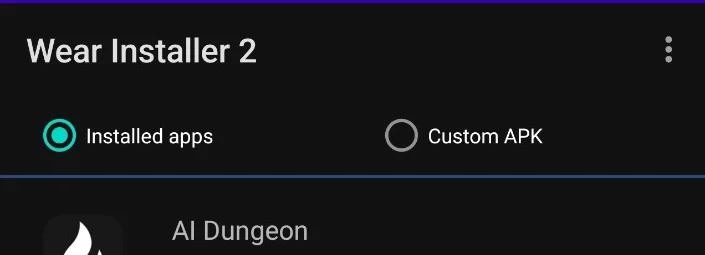
Once paired and connected, select Custom APK at the top of Wear Installer 2, rather than Installed apps.
In the file picker, open your phone’s Downloads folder and select the downloaded Message Watch APK (the filename includes Watch, not Phone).
Follow Wear Installer 2’s prompts and wait for installation to finish. Keep both devices nearby and connected.
Choose Custom APK on the right. The phone app list underneath is not where you select your downloaded watch file. Tap the image to enlarge.
Updating? Install the newer Watch APK over the existing app. Do not uninstall Message or clear its data. Compatible updates retain settings and saved chat data. If installation reports a signature conflict or refuses an older version, keep your current installation and ask Thomas for help.
On your watch
Open Message on your watch and tap Connect/Refresh. On your signed-in phone, open Settings → Connect your watch and approve the watch. Tap Refresh on the watch again. Keep the phone’s Connected mode enabled for background replies. Your watch uses the phone’s account; it does not ask for your password.
07
Finish safely — and update next time
On your watch
Turn off Wireless debugging and ADB debugging when finished.
Restore your usual screen timeout if you changed it.
Next time an update arrives
Download the latest Watch APK onto your phone and repeat the connection and Custom APK installation steps. Pairing may be remembered, but enable debugging and check the current connection port every time. If pairing has expired or the connection is rejected, repeat steps 4–5 with a fresh pairing code and port.
Wake it and reopen Wireless debugging → Pair new device. If pairing was interrupted, use the newly displayed code and pairing port. Keep that screen awake until pairing finishes; temporarily increase screen timeout if needed.
The pairing code expired or was rejected
Open Pair new device again and use its current code and pairing port. Enter code, one space, port only. Old screenshots and previous attempts are not reliable values.
Pairing succeeds, but the app will not connect
You may have mixed up the two ports. Return to the main Wireless debugging screen. Put its connection port beside the watch IP in Wear Installer 2’s Setup screen, then tap Done. The Pair new device port is only for pairing.
The IP address or port no longer matches
Check the watch’s current main Wireless debugging screen and update both setup fields on the phone. Re-enabling debugging or changing networks can change these details. Do not use the phone’s IP address or assume port 5555.
The phone cannot find the watch
Check that both devices are on the same Wi-Fi network, rather than one using mobile data or a separate guest network. Keep debugging enabled while installing. Guest networks may isolate devices; try a shared network that allows devices to communicate.
The APK will not install on the watch
Check that you selected the Message Watch APK in Custom APK, not the Message Phone APK or an item in Installed apps. Download the correct Watch file from Message downloads and try again. Do not uninstall an existing Message app to troubleshoot an update.
 hasbreo